A cloud desktop plus a tunnel: hosting a site without a public IP
A cloud desktop from China Telecom (Tianyi AI Cloud PC) comes with free hours during promotional periods. DevBridge is Huawei Cloud’s development tunnel service, which maps a local port to a public subdomain. Stack the two free allowances and you get a site other people can actually open, with speed and stability taking the hit.
What this setup fixes
The cloud desktop is a full Windows machine. It runs Baota, it runs IIS, but it sits behind NAT: no public IP, no port forwarding, and port 80 stays unreachable from outside. The usual answer is a VPS, or a frp relay on a machine that does have a public IP.
DevBridge covers the second half. Huawei Cloud handles the domain and gateway, while the machine only needs a client, a login, and a tunnel pointing at the local port.
What you need
- A Tianyi AI Cloud PC account, registered with a phone number and an SMS code
- A Windows cloud desktop with hours available, extendable with check-in points
- A Huawei Cloud account with identity verification, plus a DevBridge API key created in the devstation console, prefixed devbridge_
- Baota Windows panel, or hand-written IIS configuration
- DevBridge client: the official CLI (installable on Windows through PowerShell); the original thread used a version with a web interface
Step one: sign in to the cloud desktop
After installing the client, log in and switch the runtime location from local to cloud desktop, then click the running indicator in the top right. From there it behaves like any Windows machine.
For remote maintenance, a second remote-access tool such as UU Remote with the code set to never expire keeps the machine reachable after the Tianyi client is closed, so you do not repeat the login flow each time.
Step two: get the site running locally
The Baota Windows panel installs on the C drive, puts the default site at D:/wwwroot/default, and listens on port 8888. Pick IIS or Nginx, drop index.html into the site root, and confirm that 127.0.0.1 serves it.
The goal of this step is a stable local port. The tunnel only moves traffic, the site just needs to sit on port 80.
Step three: create the tunnel
The DevBridge interface runs at localhost:13140, with four entries on the left: tunnels, connections, configuration, settings.
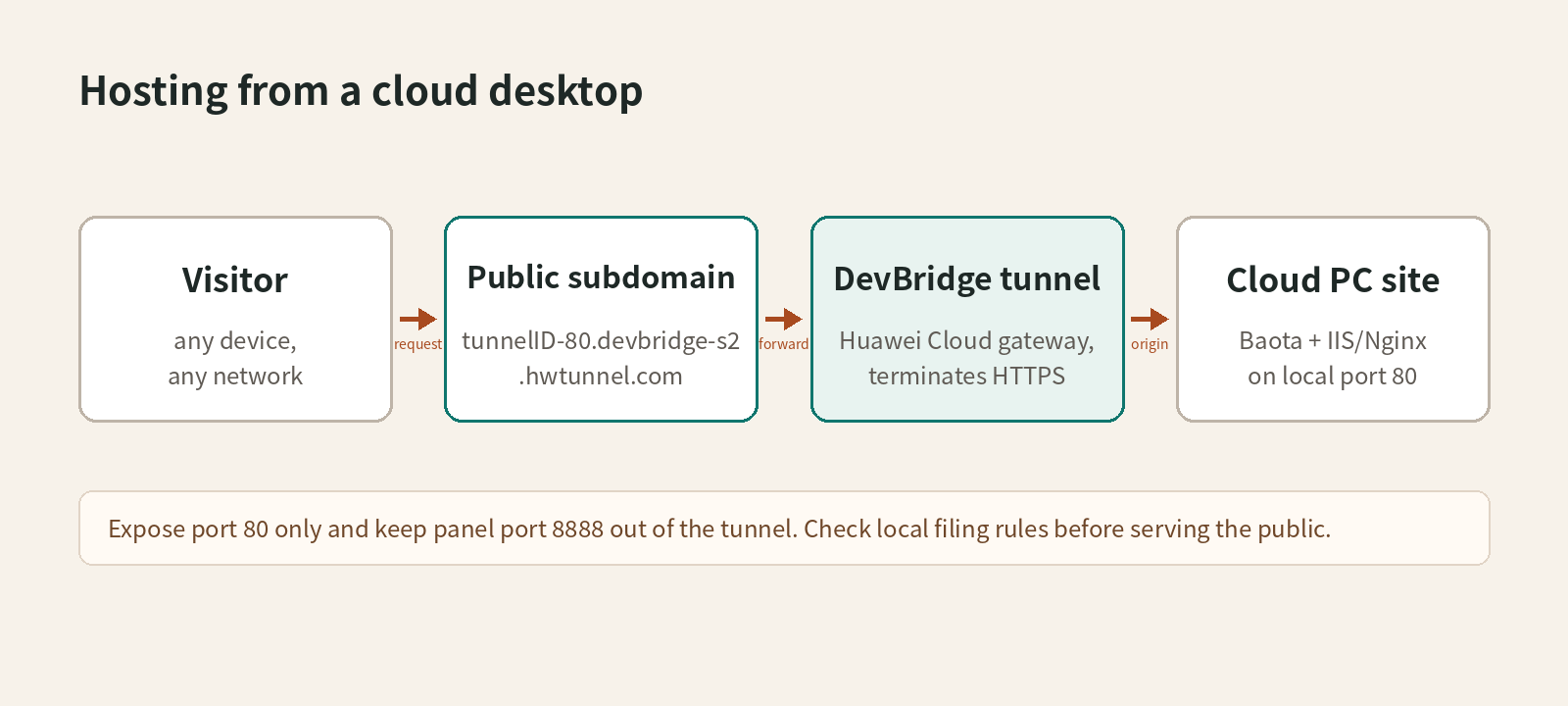
Creating a tunnel asks for a name, a description and a lifetime in hours. The official docs give a default of 72 hours and a range of 1 to 720; set 720. Then add a single port, 80, and allow anonymous access when creating it (the -a flag in the CLI). The default policy denies anonymous access, which sends visitors to a Huawei Cloud sign-in page. The port receives a public domain in the shape of https://tunnelID-80.devbridge-s2.hwtunnel.com.
Leave the panel’s port 8888 out of the tunnel. Anyone holding a shared-subdomain link can reach it, so adding the panel puts the admin interface on the public internet. For remote management, use the remote desktop tool installed earlier.
The log prints the hosting ports and tunnel URLs, ending with Ready to accept connections and Auto reconnect enabled. HTTPS terminates on the tunnel side, so no certificate is needed on the machine.
Step four: verify
Open the domain with the -80 suffix over mobile data. If the page loads, the chain works. If it lands on a sign-in page, check that the port allows anonymous access.
Limits worth knowing
- Tunnel lifetime tops out at 720 hours (30 days). Per the official docs, updating the tunnel or a port refreshes the expiry, so one update before it lapses keeps it alive. Once expired, the tunnel disappears from the list and must be recreated, and because the domain contains the tunnel ID, the new tunnel gets a new domain. A workspace holds up to 10 valid tunnels by default.
- If the cloud desktop shuts down or sleeps, the tunnel dies with it. Auto reconnect does not help once the machine is gone.
- Bandwidth and concurrency are modest. Static pages and single-user tools are fine. Video, downloads and busy traffic are not.
- The public domain is a shared second-level subdomain. Anyone with the link gets in, which matters before putting an admin panel behind it.
- Compliance. The cloud desktop is mainland infrastructure, so filing requirements for public-facing services still apply. A tunnel domain does not change that.
Where it fits
Good for validating a page, showing a demo, sharing a small tool, or learning how hosting fits together.
Poor fit for long-running sites, anything needing a fixed domain, anything with logins or data, or projects with real traffic. A cheap VPS, or static hosting for static pages, handles those better.
Source
Based on two NodeSeek threads, the activation and check-in points guide and the cloud desktop plus tunnel demo. This version reorders the steps for reproducibility; lifetime and anonymous-access details follow the official DevBridge docs.